When a virus is located on your computer the first thing you should do is run a full system scan on your computer to see if your internet security software is picking up any virus's.
The top virus removal security software are:-
Microsoft Security Essentials
AVG free edition
AVG Pro
Norton Internet Security
McAfee
If full system scan of your computer have failed to remove the virus from your system then you have definitely got a horrible virus on your computer and you will manually have to delete the infected files.
This example is how to remove antivirus 2011
1) Open task manager (ctrl + Alt + Delete) and "end process" to av2011.exe
2) WARNING!! Open Regedit (Start, type/select "run" and then type 'regedit"
ii) Locate HKEY_CURRENT_USER\Software\Microsoft\Windows\CurrentVersion\Run "av2011.exe" and delete all components of "av2011.exe"
iii) Exit out of regedit
3) Remove existing traces of av2011:
ii) Go to programs, right click on av2011 and open file located. Delete ALL files in this folder.
iii) Go to control panel select add or remove program and if you locate av2011 uninstall the program off your system
Finally Restart your machine
Friday, July 22, 2011

Simple Ways to Make Windows 7 Run Faster at Startup [download os]
windows 7 might be the newest version of Windows but it’s already extremely popular. There are a lot of great things that you can say about Windows 7 compared to earlier Windows operating systems, but it’s not perfect, and you’ll still need to know how to fix windows 7 run faster at startup. There are unfortunately a number of errors and problems which can affect the operating system .A slow startup problem may be a headache for all computer users. After using Windows 7 for some time, I find that we can make Windows 7 run faster with some rather simple tricks.
1. Increase Windows 7 boot speed
Below are the steps to fix slow Windows 7 boot problem
a. Press "[WIN] +R" to open Run window.
b. Select "Timeout" tab within "Boot".
2. Disable Prefetcher to make Windows 7 run faster
Below are the steps to fix slow Windows 7 boot problem
a. Press "[WIN] +R" to open Run window and type "regedit" to open Registry Editor.
3. Speed up Windows 7 at startup
We know that when booting up computers or run a program, it will call for some related data. If the files are too fragmented, it will take more time for hard disk head to move too much to reach what it needs like finding stuff from a messy warehouse. To ensure a faster startup, a regular disk defragment process is needed. By the way, it is recommended to uninstall the unneeded programs and clear the useless files before.
1. Increase Windows 7 boot speed
Below are the steps to fix slow Windows 7 boot problem
a. Press "[WIN] +R" to open Run window.
b. Select "Timeout" tab within "Boot".
c. If you have installed Windows operating system, you can set it to 3s from the default 30s; if you install multiple operating systems, set the value to the desired seconds you would like to have at boot time and then check "No GUI Boot" tab.
d. Click "Advanced Options" to set the "Number of processors" according to your computer configuration. After the simple setting here, you will see an improvement on Windows 7 boot speed.
2. Disable Prefetcher to make Windows 7 run faster
Below are the steps to fix slow Windows 7 boot problem
a. Press "[WIN] +R" to open Run window and type "regedit" to open Registry Editor.
b. Locate HKEY_LOCAL_MACHINESYSTEMCurrentControlSetControlSessionManager Memory ManagementPrefetchParameters and right click "PrefetchParameters" on the left-hand side, change its value data from "3" to "0".
3. Speed up Windows 7 at startup
We know that when booting up computers or run a program, it will call for some related data. If the files are too fragmented, it will take more time for hard disk head to move too much to reach what it needs like finding stuff from a messy warehouse. To ensure a faster startup, a regular disk defragment process is needed. By the way, it is recommended to uninstall the unneeded programs and clear the useless files before.
How to fix "BOOTMGR is Missing" error [download os]
Windows requires the "BOOTMGR" file to load the operating system when you turn on the computer. The “Bootmgr is Missing” Error is a problem that indicates your computer could not locate your Windows installation. The most common reasons for BOOTMGR errors include corrupt and misconfigured files, hard drive and operating system upgrade issues, corrupt hard drive sectors. You can correct the error using the Windows 7 installation DVD, which contains a bootup repair module for corrupted or missing boot files.
Steps to Fix "BOOTMGR is Missing" error
• Insert the Windows 7 installation DVD in the computer's drive. Press the "Reset" button on your computer's case to reboot the computer. When the command prompt asks if you want to boot to the DVD, press any key to open the Windows 7 installation window
Select your language, time zone and keyboard settings in the first installation window. Click "Next."
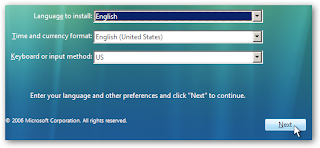 • Click the "Repair Your Computer" link at the bottom-left corner in the next window. The list of repair options display on the next screen.
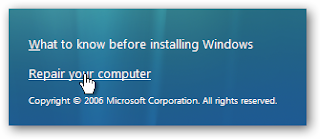 • Click the "Startup Repair" option. Windows searches for any corrupt or missing boot files including BOOTMGR. The missing file is replaced on the hard drive. After the repair process completes, remove the installation DVD and reboot the computer.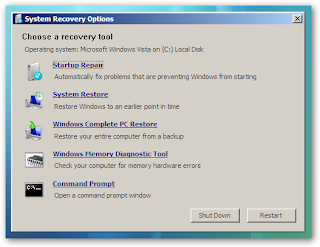
How to Change Programs at Windows Startup [download os]
One of the main reasons why your Windows takes so long to boot when you switch it is due to the number of programs that run at system startup and this is the place for you to identify and disable them. In Windows operating systems, certain Terminate and Stay Resident (TSR) programs are initiated during startup. Often, users will need to modify the startup process to stop the loading of some TSR programs. A Windows utility program, the System Configuration Utility (msconfig), is provided with each operating system installation. This utility will enable the user to modify the Windows startup process and the programs initiated during this process.
Steps to change programs at windows startup
• Click the "Start" button on the Windows desktop.
• Select the "Run" option.
• Type "msconfig" into the Run input box.
• Click "OK." A window with five tabs will appear.
• Click the "Startup" tab. A list of programs with checkboxes will appear.
• Uncheck each unneeded startup program. By using the msconfig utility, changes made to the startup process may be easily reversed.
• Reboot the computer. Windows will now start only the TSR programs specified with the configuration utility.
Many of you may have already have your hands on Windows 7 and must be exploring it. Waiting for your Windows to shut down completely can be a frustrating if you want the shutdown time to be much faster than what it is now read our blog “How to speed up shutdown time in windows 7”
How to Invite Remote Assistance on Windows 7 [download os]
When something goes wrong with the computer, and you don’t know how to fix the issue. So, you try to contact somebody for help. For this Windows has created Windows Remote Assistance feature, which allows to anyone, with your permission of course, connect remotely to a computer via a local network or the internet. You must invite the remote person before a connection can take place. Use the Easy Connect method if the other person is also using a Windows 7 computer. After the initial successful connection, the person appears in a contact list to simplify future invitations. Create and send an invitation file if the other person is using a different version of Windows.
Steps to send Invitation File• Click the "Start" and type "Remote Assistance" in the "Search" box.
• Select "Windows Remote Assistance" from the list that appears.
• Click "Invite someone you trust to help you."
• Click "Save this invitation as a file" and select "Desktop" as the save location.

• Use your regular email program or website to send the file from the Desktop to the remote person.
• Communicate the 12-character password that appears to the remote support person, who will use it to connect to your computer when they open the invitation file. Click "Yes" to accept the connection.
Easy Connect
• Click the "Start" button and then type "Remote Assistance" in the "Search" box.
• Select "Windows Remote Assistance" from the list that appears.
• Click "Invite someone you trust to help you."
• Click "Use Easy Connect."
• Communicate the 12-character password to the remote support person, who will use it to connect to your computer through Easy Connect. Click "Yes" to accept the connection
Windows Vista Stops Responding While Trying to Boot [download os]
Windows vista is considered as the most secure and the reliable Operating system. But at the same time bugs and the errors can't be ruled out. That’s the reason we face problems in Windows Vista. One of the typical symptoms is that computer might fail to boot, displaying STOP errors on screen. This issue can occur if any one of the file required to boot the system is missing or damaged. To fix this issue you need to reinstall windows vista and restore the information from current data backup. If you facing problem with your backup, scan your hard drive using commercial data recovery applications or contact Windows Vista Technical Support .
Steps to follow if Windows Vista Stops Responding While Trying to Boot
• To fix this issue, you should have Windows Vista installation disc.
• Insert the installation disc and boot your system
• select the desired language and click on “Next”.
• Select 'Repair your computer' option
• You need to then select the operating system to be repaired in 'System Recovery Options' dialog box
• In the same dialog box, click to choose 'Startup Repair' option
• Startup Repair will automatically try to detect and correct startup problems that prevent Windows Vista from booting. Click Finish when the process gets completed.
Windows Vista Problems and Troubleshooting [download os]
This vista problem troubleshooting article guide you how to troubleshoot various windows vista error problem and in detail windows vista troubleshooting solution.
There are lots of problems with windows vista and those are vary difficult to troubleshoot for a layman user. Here are the list of windows vista problems and troubleshooting guide for those vista problems.
Vista problem kernel data inpage error status no such device
During re-enumeration of a previously enumerated ide controller, a race condition exists between atapisys and pciidexsys or between Ataportsys and Pciidex.sys. In this race condition, the following conditions are true:
Atapi.sys and Ataport.sys use the stm method to select a transfer mode on a channel. The stm method is in the advanced configuration and power Interface bios. pciidex.sys verifies whether that channel exists by checking for the ide decode enable bit.
If the bios implementation of the stm method has cleared the ide decode enable bit, pciidex.sys determines that the channel does not exist. When this behavior occurs, pciidexsys does not enumerate the channel.
vista troubleshooting guide for this error
Because atapisys and ataportsys never run the stm method as long as there is i o on the channel, the stm method does not have to clear the ide decode enable bit. Therefore, BIOS manufacturers should not clear the ide decode enable bit in the stm method.
Path maximum transmission unit black hole router detection.The following is a list of black hole router detection changes that are included in windows server 2003 sp2.
By default, black hole detection is turned on.
Black hole probing is performed only for connections in established or advanced states.
Black hole probing is performed only for connections on which there is no full-size segment acknowledgement.
If black hole probing fails, the tcp maximum segment size of the connection is restored to what it used to be before probing.
• With black hole router detection turned off in versions of Windows that are earlier than windows server 2003 sp2, a connection times out approximately after 63 rtt. In windows server 2003 sp2, connections time out after 71 * rtt.
Remove Hibernation in Windows Vista troubleshooting
Hibernation is not made unavailable when you set the value of the hibernate after setting to never by using the power options item in windows vista control panel.
To make hibernation unavailable on windows vista, follow these steps:
1. Click start, and then type cmd in the start search box.
2. In the search results list, right-click command prompt, and then click run as administrator.
3. When you are prompted by user account control, click continue.
4. At the command prompt, type powercfg.exe hibernate off, and then press enter.
5. Type exit, and then press enter.
To make hibernation available, follow these steps for vista troubleshooting:
1. Click start on windows vista, and then type cmd in the start search box.
2. In the search results list, right-click command prompt, and then click run as administrator.
3. When you are prompted by user account control, clicks continue.
4. At the command prompt, type powercfg.exe hibernates on, and then press enter.
5. Type exit, and then press enter to close the command prompt window.
This tutorial will take a look at the “Hyper-v Manager” built-in to Windows Server 2008 R2. !! For this to work your computers/servers CPU will have to support hardware assisted “Virtualization” and have it enabled in the BIOS. !!
Related Microsoft Windows Server Guide Articles
There are lots of problems with windows vista and those are vary difficult to troubleshoot for a layman user. Here are the list of windows vista problems and troubleshooting guide for those vista problems.
Vista problem kernel data inpage error status no such device
During re-enumeration of a previously enumerated ide controller, a race condition exists between atapisys and pciidexsys or between Ataportsys and Pciidex.sys. In this race condition, the following conditions are true:
Atapi.sys and Ataport.sys use the stm method to select a transfer mode on a channel. The stm method is in the advanced configuration and power Interface bios. pciidex.sys verifies whether that channel exists by checking for the ide decode enable bit.
If the bios implementation of the stm method has cleared the ide decode enable bit, pciidex.sys determines that the channel does not exist. When this behavior occurs, pciidexsys does not enumerate the channel.
vista troubleshooting guide for this error
Because atapisys and ataportsys never run the stm method as long as there is i o on the channel, the stm method does not have to clear the ide decode enable bit. Therefore, BIOS manufacturers should not clear the ide decode enable bit in the stm method.
Path maximum transmission unit black hole router detection.The following is a list of black hole router detection changes that are included in windows server 2003 sp2.
By default, black hole detection is turned on.
Black hole probing is performed only for connections in established or advanced states.
Black hole probing is performed only for connections on which there is no full-size segment acknowledgement.
If black hole probing fails, the tcp maximum segment size of the connection is restored to what it used to be before probing.
• With black hole router detection turned off in versions of Windows that are earlier than windows server 2003 sp2, a connection times out approximately after 63 rtt. In windows server 2003 sp2, connections time out after 71 * rtt.
Remove Hibernation in Windows Vista troubleshooting
Hibernation is not made unavailable when you set the value of the hibernate after setting to never by using the power options item in windows vista control panel.
To make hibernation unavailable on windows vista, follow these steps:
1. Click start, and then type cmd in the start search box.
2. In the search results list, right-click command prompt, and then click run as administrator.
3. When you are prompted by user account control, click continue.
4. At the command prompt, type powercfg.exe hibernate off, and then press enter.
5. Type exit, and then press enter.
To make hibernation available, follow these steps for vista troubleshooting:
1. Click start on windows vista, and then type cmd in the start search box.
2. In the search results list, right-click command prompt, and then click run as administrator.
3. When you are prompted by user account control, clicks continue.
4. At the command prompt, type powercfg.exe hibernates on, and then press enter.
5. Type exit, and then press enter to close the command prompt window.
I am windows vista admin and I like to share my vista problem troubleshooting knowledge with others.
Article from articlesbase.com
Article from articlesbase.com
This tutorial will take a look at the “Hyper-v Manager” built-in to Windows Server 2008 R2. !! For this to work your computers/servers CPU will have to support hardware assisted “Virtualization” and have it enabled in the BIOS. !!
Related Microsoft Windows Server Guide Articles
Subscribe to:
Posts (Atom)